Every website has a recipe. I built How Its Built because I wanted to see the ingredients without spending half an hour in DevTools.
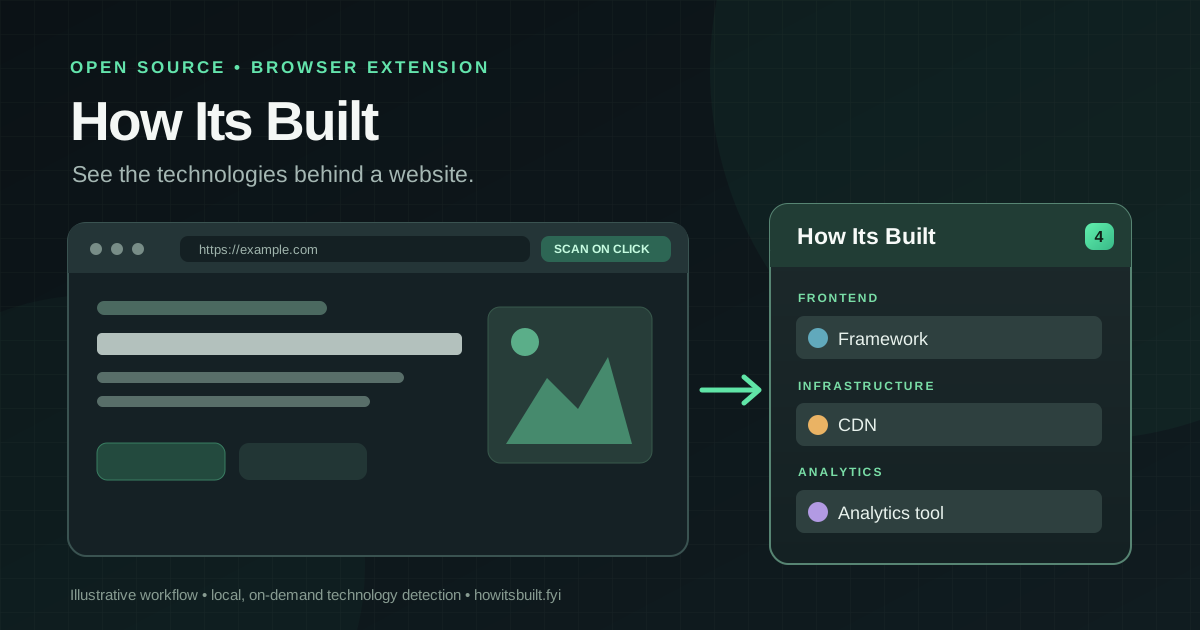
Open a website, click the extension, and you get a categorized view of the technologies it recognizes: frameworks, content management systems, e-commerce platforms, analytics tools, CDNs, payment services and more. No account is required for the free scan.
What matters to me is how it works. The browser extension's code is public, the free detector works locally, and it only inspects a page when you ask it to. There is also a website lookup and an optional Pro tier for people who need more than technology names.
The problem I wanted to solve
I'm constantly looking at websites and asking practical questions: Is this built with Next.js or another framework? Is it WordPress? Which analytics stack is involved? What powers the checkout? Does this site use a particular UI library or CDN?
You can investigate all of that manually. Open developer tools, inspect HTML and script URLs, search for recognizable attributes, check JavaScript objects and review network activity. But that gets repetitive, especially when you're comparing several sites.
How Its Built turns those clues into a short, readable inventory. It is a technology detector, not a way to download another company's source code or reconstruct its private backend.
What the extension shows
The popup groups matches by category, with recognizable names and icons. Where available, a technology name links to its website. The toolbar badge shows how many technologies were detected after you perform a scan, and the Copy button copies the categorized stack as plain text.
The fingerprint database covers thousands of technologies. These are examples of the types of things the detector can recognize when a site exposes suitable clues:
| Area | Examples of technology families | Why I check |
|---|---|---|
| Frontend | React, Vue, Next.js, Angular | Understand the rendering and UI ecosystem |
| CMS and publishing | WordPress and other CMS platforms | Identify the content platform |
| Commerce and payments | Shop platforms and payment integrations | Understand the storefront stack |
| Analytics and marketing | Analytics tools, tag managers and pixels | See which measurement tools are present |
| Infrastructure | CDN and hosting-related fingerprints | Get clues about delivery and infrastructure |
| Other integrations | Widgets, chat tools and third-party libraries | Discover dependencies that are easy to overlook |
A category is not proof that every example will appear in every scan. Detection depends on which fingerprints are present in the page and which signals Chrome allows the extension to read.
How a scan actually works
The current extension deliberately avoids silently checking every page you visit.
- Open a normal HTTP or HTTPS page. Nothing is scanned just because you navigated there.
- Click the How Its Built toolbar icon. This user gesture grants temporary access to the active tab through Chrome's
activeTabpermission. - Collect local clues. The bundled detector checks the page URL, markup, metadata, script URLs and inline scripts, visible text, selected JavaScript globals, DOM elements and JavaScript-accessible cookies.
- Match fingerprints locally. The engine compares those signals against bundled technology signatures, resolves relationships and presents recognized technologies by category.
- Read or copy the results. The badge reflects the count for that tab. It is cleared when the page navigates.
One implementation detail I like: while the popup stays open, the extension can run a second scan after roughly three seconds. That helps with frameworks that reveal their presence only after the page hydrates. It is not continuous background monitoring.
The page inspection is bounded: large HTML and text inputs, inline scripts and collected values are capped instead of being copied without limits. The matching engine is packaged with the extension rather than downloaded as executable code at runtime.
Source: local signal collection, tab scanning, popup behavior.
Privacy: what “local” means here
The free browser scan happens on your device. It does not send the inspected page content or your scan results to the How Its Built server. It also does not need an account, maintain a browsing-history database or request permanent access to every website.
That is a deliberate permissions choice:
activeTabandscriptingare used only when you open the popup to analyze the active site.storageis used for the optional sign-in token, if you connect an account.- Permanent host access is limited to
https://howitsbuilt.fyi/*for account connection and Pro requests. - The current source does not use
<all_urls>orwebRequestfor continuous observation.
There is an important nuance: to identify technologies, the locally executed collector can read JavaScript-accessible cookie names and values alongside other page signals. Those values are evaluated locally in Free; cookies marked HttpOnly cannot be read through document.cookie. You should still treat a browser extension as software with access to the page you explicitly authorize.
When you request Pro details, the selected domain is sent to the service for a server-assisted lookup. That is a different data path from the local Free scan. The source and store-permissions documentation describe both.
Free vs. Pro: what is available now?
I wanted the useful part—the actual list of technologies—to remain free. The paid layer is for more detailed investigation.
| Capability | Free | Pro |
|---|---|---|
| On-demand, local extension scan | Yes | Yes |
| Technology names, icons and categories | Yes | Yes |
| Copy the categorized stack as text | Yes | Yes |
| Versions where identifiable | — | Yes |
| Confidence and evidence behind matches | — | Yes |
| JSON and CSV export through the website | — | Yes |
| Hosting/DNS/mail investigation, tracking IDs, multi-page scans | — | Planned, not yet shipped |
| JavaScript-rendered server scans and security-header scorecard | — | Planned, not yet shipped |
The Pro popup has Stack and Details views. Details can show a version, a confidence value and the evidence associated with a match, when those fields are available. Evidence is useful because “React detected” is much more actionable when you know which signal led to the identification.
At the time of writing, the website lists Pro at $4.99/month, with a seven-day free trial requiring a payment card. You can cancel before the trial ends. The pricing page is the source of truth for current terms.
I am intentionally separating implemented features from coming-soon features. Planned DNS, mail-provider, TLS, tracking-ID and multi-page analysis should not be mistaken for capabilities available today.
Why the website and extension can disagree
You can also enter a domain directly at howitsbuilt.fyi without installing anything. This lookup reads publicly available site data such as returned HTML and response headers. It is convenient for a quick check.
The browser extension has another perspective: it can inspect the rendered page after JavaScript runs, including DOM elements and exposed JavaScript globals. It can therefore recognize technologies the server-side lookup misses.
The reverse is also true. The current free extension intentionally does not collect HTTP response headers. A technology visible only in a header might appear in a website lookup but not in the extension's Free view.
Neither result is a complete architecture diagram. Reverse proxies, server-side services, private APIs and deliberately obscured tools may leave no reliable client-side fingerprint at all.
Installing How Its Built
The extension is built for Chrome and Chromium-based browsers. The current public source is version 0.2.1.
Important release note (October 12, 2026): the latest downloadable GitHub release is still v0.2.0. Its ZIP contains the older, broader permissions model. The repository's v0.2.1 source removes those permissions and the store-submission instructions explicitly warn against using the old ZIP. For the on-demand permissions described in this article, build the current source rather than installing the v0.2.0 release archive.
Build the current version from source
Clone the public extension repository and run:
git clone https://github.com/Livvux/howitsbuilt-extension.git
cd howitsbuilt-extension
corepack enable
pnpm install --frozen-lockfile
pnpm --filter extension build
Then open chrome://extensions, enable Developer mode, click Load unpacked, and select apps/extension/.output/chrome-mv3. Pin How Its Built to the toolbar, open a normal website and click the icon.
If you want a distributable archive for your own build, the repository also provides pnpm --filter extension zip. Check the releases or the official site for an updated distribution; don't assume that a pre-v0.2.1 archive has the same privacy behavior.
Chrome may block extension injection on internal pages, the Chrome Web Store and certain document viewers. “Can't inspect this page” is an expected limitation, not necessarily a broken install.
Open source, without hiding the licensing
The browser extension is open source under GPL-3.0-only. Its detection fingerprints build on the enthec/webappanalyzer community dataset, which is also GPL-3.0 licensed. The project uses TypeScript, WXT, and a shared technology-detection engine.
This is useful for developers who want to review what the extension reads, inspect how fingerprint matching works, run the tests or contribute detection improvements.
There is an important distinction: the public extension repository is open source; the separate web service is not being presented as open source. You can use the Free extension without depending on a paid account, while the website and Pro APIs remain separate services.
Developer starting points:
Where it helps—and where it doesn't
I mainly see three practical uses: technical inspiration, competitive stack research and quick due diligence before working on an unfamiliar site. Instead of guessing which platform a website uses, I can start with a list of observable signals and investigate only the interesting parts.
But fingerprinting is probabilistic. A detection can be wrong, a version can be missing, and an unrecognized tool may still be running behind the scenes. It is not a security audit, a source-code extractor or proof of what lives on someone else's server. For a serious architectural decision, verify the finding independently.
My aim with How Its Built is deliberately narrower: make the visible technology behind a website easier to understand, without requiring people to hand over their browsing activity just to identify a framework.
Try the website lookup, read the open-source extension code, and follow the repository releases for a build with the updated permission model.